
Have you ever encountered a frustrating error message while creating a product listing on Amazon?
You’re not alone.
Navigating Amazon’s listing process can sometimes lead to confusion and errors, hindering your product’s visibility and potential sales.
But fear not!
This comprehensive guide is here to empower you.
Within this article, we’ll delve into a range of common Amazon listing errors, unraveling their causes and providing clear solutions. Whether you’re facing issues with product information, image uploads, or seller permissions, this guide will equip you with the knowledge to conquer these errors and ensure your listings shine.
What is an Amazon listing error?
Avoid these costly listing errors by following the best practices outlined in our comprehensive guide on how to sell on Amazon.
Amazon listing errors occur when the information or details you provided to Amazon about your product, were not accurate or wrong. The Amazon guidelines provide you with some specific rules and conditions to list your product on Seller Central, if these conditions are not fulfilled, then you get the Amazon listing error.
These errors can be a big deal because they can hide your product from people searching on Amazon. Imagine having a great product in a crowded store, but it’s stuck in the back on a dusty shelf! With an error, that’s kind of what happens on Amazon.
You may receive an error for a few reasons: perhaps you overlooked something important, like the product code, or perhaps your images are not sufficiently clear. Amazon will let you know if there’s a problem and how to fix it.
The important thing to remember is that keeping your listings up-to-date and following Amazon’s guidelines is key to making your products visible to shoppers.
Recommended Read:
Best Practices to Reduce Errors in Order Fulfillment for E-commerce
What are the main categories of listing errors, and what do they mean?
The three main and common categories of listing errors in Amazon are as follows
Suppressed Listing
A suppressed listing on Amazon means your product is hidden from shoppers, even if it’s still in your inventory. This can happen for many reasons, but one common one is missing information about your product. Think of it like a store hiding your product in the back because the label is missing!
If Amazon doesn’t have all the details they need, they won’t show your product to customers.
Inactive Listing
An inactive listing on Amazon is like having your product on a store shelf with the price tag ripped off and the “For Sale” sign missing. Customers can’t buy it because Amazon has hidden the “Buy Now” and “Add to Cart” buttons.
There are a few reasons this might happen. Maybe your product is out of stock, so Amazon doesn’t want people trying to buy something you can’t deliver. Amazon might also think your price is too high compared to other places, or they might need special permission for you to sell that particular item. In some cases, if Amazon gets reports that your product might be fake, unsafe, or expired, they’ll hide it until they investigate.
Deleted Listing
A deleted listing on Amazon is like completely removing your product’s information from their online store. This can happen in two ways.
Sometimes, sellers decide to delete a listing themselves, maybe because they’re no longer selling that product.
Other times, Amazon might delete a listing if they find two listings that seem to be for the same item. In that case, they’ll usually combine the information into a single listing.
The important thing to remember is that once a listing is deleted, your product won’t show up in search results, and buyers can’t find it.
How do I fix incorrectly flagged listings?
Even if your listing follows Amazon’s rules, it might still be hidden because of something you wrote about your product. Amazon prohibits sellers from making false claims about their products, such as claiming they can cure diseases. Sometimes, their automatic checkers might mistake your words for something forbidden, even if they’re not. If this happens, you can tell Amazon that they flagged your listing by mistake.
You can report it by following either of the two suggestions, depending on the issue:
Performance Notifications
If there is a problem with one of your listings, Amazon may send you a performance notification that includes the ASIN code. This could mean they take down your product page or stop you from selling it entirely.
Here’s what you can do:
Find the culprit
Log in to your Seller Central dashboard. It’ll show you which product listing has the issue and the ASIN code. You can also check recent customer comments there, which might give you clues about what went wrong
Craft a fix-it plan
Write a simple plan explaining what caused the problem and how you’ll solve it. Also, tell Amazon how you’ll prevent it from happening again. Think of it like explaining something to a friend; keep it clear and to the point.
Submit your plan
Once you’ve written your plan, send it to Amazon. They’ll review it, and hopefully, if they’re happy with your explanation, they’ll let you sell your product again!
Stranded Inventory
Did you ever put something away so well that you forgot where it was? Sometimes that happens to your Amazon listings too!
If a product listing contains errors, such as missing details or incorrect flags, Amazon may hide the listing and mark it as “Stranded Inventory.”
You can find these hidden listings in your Seller Central dashboard under “Manage Inventory” and then “Stranded Inventory.”
Amazon will usually tell you why the listing is stranded, like a missing description or something you accidentally wrote that wasn’t allowed.
There are two things you can do to fix this:
Correct the issue
If it’s a minor oversight, such as a missing detail, you can readily make edits to your listing and restore your product’s availability.
Submit an appeal
If you believe that Amazon incorrectly flagged your listing, you can submit an appeal stating why and requesting reconsideration.
How and where can I look for Amazon listing errors?
Amazon wants you to give clear and detailed descriptions of your products, and they have specific rules for what information you can include.
If your listing doesn’t follow these rules, you’ll get an error code.
Here are some common mistakes that can trigger errors:
Wrong information
This could be anything from a typo in the title to forgetting a product code.
Formatting issues
Maybe your descriptions are too long or don’t use the commas and stuff (punctuation) that Amazon wants.
Missing stuff
You might need permission to sell a certain product, or maybe you forgot to add a picture!
Whenever you submit a listing, Amazon creates a report that shows the errors they found on the go.
You can find these reports in your Seller Central account.
These reports inform you about:
- Which listing has the error (by code)?
- What kind of error it is (like “missing information”)?
- An error code (a unique number)
- A message explaining the error
You can use the error code to look up the problem in Amazon’s guide.
How do we connect with Amazon for generic errors?
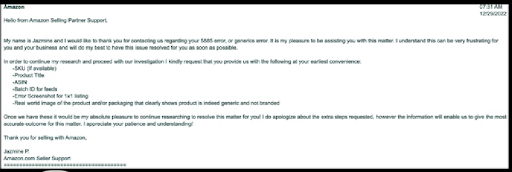
What do you mean by error 4000 in the Amazon listing?
Error 4000 in an Amazon listing means there is a problem with your seller account’s permissions for fulfilling the product. It indicates that you are not authorized to sell products in that category.
To sell these products on Amazon, you can consider using Fulfillment by Amazon (FBA).
How can I fix or troubleshoot error 4000 in the Amazon listing?
You can fix this error by following these steps:
Verify Category Restrictions
Double-check the product category you’ve chosen. Some categories on Amazon require specific approvals or qualifications before allowing sellers to list products.
seller’s
Review Seller Account Permissions
Look into your seller account permissions. There might be limitations on the categories you can sell in. Review your account information or contact Seller Support to confirm your current permissions.
What is error 5000 in the Amazon listing?
Error 5000 in an Amazon listing means there is a problem with the format of your product data. This happens when your data feed doesn’t follow specific rules called XML Schema Definition (XSD) that define how the data should be structured. Using professional Product listing services can help ensure your data is correctly structured.
For instance, common issues that might cause Error 5000 include:
- Text entries exceeding character limits
- Incorrect order of product attributes
- Missing required attributes
- Invalid values in predefined lists (enumerations)
How can I fix or troubleshoot error 5000 in the Amazon listing?
By reviewing the error report that Amazon has provided, you can easily and quickly fix Error 5000. This report precisely identifies the problematic row in your data feed and offers a concise explanation.
It is also advisable to download the most recent XSDs from Seller Central to minimize future errors. These files provide detailed format criteria for your product data in each category. Validating your data feed against the applicable XSD will guarantee its compliance with Amazon’s specifications.
What is error 5002 in the Amazon listing?
Error 5002 is nothing but Amazon’s fault. It is an internal issue without any fault on your end. It’s a distinctive internal error message that bears no relation to any flaw in your product data.
How can I fix or troubleshoot error 5002 in the Amazon listing?
This error is easy to resolve, as all you need to do is merely resubmit your product information. However, if the error persists even after resubmission, it is advisable to reach out to Amazon Seller Support for further guidance and support.
What is error 5003 in the Amazon listing?
Error 5003 means you have made too many mistakes in your product data and it is difficult for Amazon to handle, thus your account gets inactive.
How can I fix or troubleshoot error 5003 in the Amazon listing?
This could be a serious issue if you don’t handle it carefully. To rectify it and avoid encountering Error 5003 again, consider these simple steps:
Cross-check Data and its validity
Please ensure that the data file you are submitting aligns with Amazon’s data dictionary, which provides valid values for each data field. This comparison will ensure that your data entries meet Amazon’s requirements.
Opt to submit smaller batches
If your data file is large, try submitting smaller parts for processing. This can help you identify specific errors in your data and make troubleshooting easier.
What is error 5004/99001 in the Amazon listing?
This error simply means some important and sensitive data is missing in the product data file. These missing details could include a detailed product description, multiple product images that are available, or a product title longer than 80 characters.
How can I fix or troubleshoot error 5004/99001 in the Amazon listing?
Follow these easy steps to resolve this error:
Examine your data file closely
Carefully examine the data file you’re submitting. Ensure all mandatory fields are filled in with the necessary information.
Compare with Data Definitions
Amazon provides a Data Definitions Tab on Seller Central. Compare the fields in your data file with this resource to confirm you’ve included all required data points.
Resubmit the Data
Once you’ve ensured all required fields are populated with accurate information, resubmit your data file to Amazon.
What is error 5005 in the Amazon listing?
Error 5005 indicates a mismatch between your Merchant Identifier and your Seller Central credentials.
Here’s a breakdown of the issue:
Merchant Identifier
This unique code, resembling “M_ACMEINC_012345,” identifies your seller account to Amazon. It’s generated when you register as a merchant.
Seller Central Credentials
These are your username and password for accessing your Amazon Seller Central account.
The error 5005 occurs when the Merchant Identifier value provided in your data feed does not match the credentials used for accessing your Seller Central account.
How can I fix or troubleshoot error 5005 in the Amazon listing?
This error can be fixed by following these steps:
Locate Your Merchant Identifier
Go to Seller Central, navigate to “Settings,” then “Account Info,” and finally “Your Merchant Token.” This will display your unique merchant identification code.
Verify and Update
Make sure the Merchant Identifier value in your data feed exactly matches the code in Seller Central. If there’s a discrepancy, update the data feed with the correct code.
Alternative Solution
If you’re using software to manage your listings, consult the software’s documentation for instructions on how to ensure it transmits valid credentials along with your data feed.
By following these steps, you will be able to resolve Error 5005 and ensure that your merchant identifier aligns with your Seller Central credentials.
What is error 5008 in the Amazon listing?
Error 5008 in an Amazon listing indicates a mistake in how you specified whether you want to update or delete a product.
There are two valid options for this action: “Update” and “Delete.”
Scenario 1: Inventory File Error
If you received this error after submitting an inventory file, it means you likely used a value other than “Update” or “Delete” in the specific column designated for updating or deleting products.
Scenario 2: Data Feed Error
If you encountered this error after posting a data feed (a larger file containing product information), then the issue lies within the “OperationType” value specified in your XML file. It is likely that it contains a value other than the accepted “Update” or “Delete.”
How can I fix or troubleshoot error 5008 in the Amazon listing?
You can fix this error by making sure to only use “Update” or “Delete” in the designated field or as the “Operation Type” value in your XML feed. Simply resubmit your file with these adjustments, and the error should be resolved.
What is error 5501 in the Amazon listing?
When Amazon is unable to locate a corresponding product based on the ID provided by you (EAN/UPS), then Error 5501 is witnessed. This can happen in a couple of scenarios:
Incorrect Product ID
You may have accidentally entered an invalid product ID while creating your listing. Double-check the accuracy of the product ID you’re using.
Matching Bulk Products
If you’re trying to list multiple products using a bulk upload, and some don’t already exist on Amazon, you’ll encounter this error. It’s recommended to verify if each product has a valid product ID on Amazon before attempting a bulk upload.
How can I fix or troubleshoot error 5501 in the Amazon listing?
Error 5501 can be fixed by following these easy steps:
Verify your Product ID
Meticulously check the product ID you’ve entered for any typos or errors.
GTIN Exemption (if applicable)
If your product is exempt from requiring a Global Trade Item Number (GTIN), such as certain handmade items, you can request an exemption from Amazon. Look for specific guidelines on GTIN exemptions within Seller Central.
By following these steps, you should be able to identify the cause of Error 5501 and ensure your product listings have valid product IDs recognized by Amazon.
What is error 6014 in the Amazon listing?
Amazon has restrictions on the sale of certain products and when your product listing indicates those restricted products, then Error 6014 is displayed on your Seller Central account. Due to legal and other considerations, Amazon cannot allow listings for all product types on their platform.
How can I fix or troubleshoot error 6014 in the Amazon listing?
You can simply resolve this error by applying for approval from Amazon. This process allows them to assess whether your product can be sold while adhering to their guidelines.
What is error 6024 in the Amazon listing?
Error 6024 in an Amazon listing indicates that you are not authorized to sell a product under a specific brand name within that particular category.
In order to list products under certain brands, sellers must fulfill additional requirements set by Amazon.
How can I fix or troubleshoot error 6024 in the Amazon listing?
Here’s how to troubleshoot and fix Error 6024 in your Amazon listing:
Request Brand Approval
To gain authorization, contact Amazon Seller Support. Within Seller Support, navigate to the “Inventory” section and then click on “Permission to sell new products.”
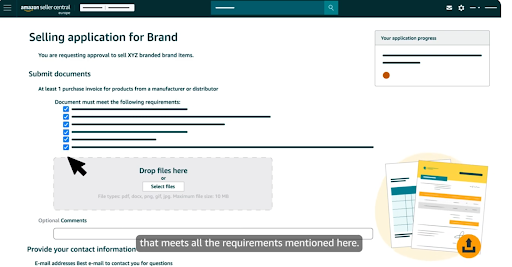
Provide Required Information
When requesting approval, be prepared to furnish the following details:
- Product Type
Specify the type of product you intend to sell (e.g., clothing, electronics, etc.)
- Desired Brand Name
Clearly state the brand name you want to list under.
- Manufacturer Authorization
Provide a URL from the manufacturer’s website that explicitly lists you as an authorized seller of their products.
By following these steps and providing the necessary information, you can initiate the brand approval process and potentially resolve Error 6024. Once Amazon grants approval, you should be able to list your products under the desired brand name.
What is error 6039 in the Amazon listing?
Amazon’s Error 6039 indicates that you lack the authorization to sell a product in a specific restricted category. This restriction is in place to ensure compliance with various regulations and to prioritize safety.
How can I fix or troubleshoot error 6039 in the Amazon listing?
You can fix this error through these simple steps:
Request Category Approval
You’ll need to request approval from Amazon to sell in this restricted category.
Approval Process
The approval process may involve submitting additional documentation, undergoing performance checks, or meeting other qualifications set by Amazon.
By obtaining approval for the restricted category, you should be able to list your product and proceed with the sale.
What is error 8004 in the Amazon listing?
Error 8004 in an Amazon listing indicates a potential match with an existing product based on some of its attributes. Amazon uses a unique identifier called ASIN (Amazon Standard Identification Number) to track products.
This error may occur when the product you’re trying to list might have similar characteristics to an already existing product in Amazon’s catalog.
The error message will provide the ASIN of a similar product and highlight the matching attributes.
How can I fix or troubleshoot error 8004 in the Amazon listing?
By following these easy steps, you can address the potential duplicate issue and create an accurate listing for your product.
Review the Existing Product (ASIN) and search for the provided ASIN within Amazon’s catalog. If its a:
Match
If this existing product (ASIN) is exactly what you’re selling, you can simply add your product as an existing listing using that ASIN. There is no need to create a duplicate listing.
Not a Match
If your product has some differences compared to the suggested ASIN, then contact Amazon Seller Support for further guidance. They can help you determine the best course of action, such as creating a new listing with accurate differentiating attributes.
What is error 8005 in the Amazon listing?
Amazon listing error 8005 indicates a potential mismatch between your product information and how Amazon identifies it.
The error might occur when
- You’re trying to update your product information with changes that affect its core identity on Amazon. This identity is based on specific attributes like UPC, brand name, etc.
- The change you’re trying to make might not align with how Amazon already recognizes this product (by using a distinctive ASIN code).
- If left unaddressed, this error could lead to your product being linked to the wrong item in Amazon’s catalog, potentially a completely different product with a different ASIN.
How can I fix or troubleshoot error 8005 in the Amazon listing?
You can fix this error by simply following these two steps:
- Amazon recommends deleting the current product listing with this Stock Keeping Unit (SKU)
- Followed by creating a new listing with accurate and updated information. This ensures your product has a clear and consistent identity within Amazon’s system.
Note: Deleting the SKU entirely removes the existing listing. Make sure you have a backup of your product information before proceeding with deletion.
What is error 8006 in the Amazon listing?
Amazon listing Error 8006 occurs when you attempt to delete a product that is still available for purchase i.e. its inventory is greater than zero. To prevent accidental deletion while a customer might have the product in their cart, you need to set the available inventory to zero before deleting it.
When you try to delete the product from the listing without changing your inventory to zero, amazon restricts you from doing so.
How can I fix or troubleshoot error 8006 in the Amazon listing?
You can easily fix this error by using Tab-Delimited Files, simply by following these steps:
Update Quantity to Zero
You need to locate the product that you want to delete within your inventory file. Edit the quantity field associated with that product and change it to “0” (zero). This indicates there’s no more stock available for purchase.
Set “Delete” for Update/Delete
There should be a specific column in your file designated for update/delete actions. In this column, ensure the value for the product you’re deleting is set to “Delete”.
Resubmit the Inventory File
Once you’ve updated the quantity and set the delete action, save your inventory file and resubmit it to Amazon.
What is error 8007 in the Amazon listing?
This error 8007 in an Amazon listing indicates a problem with how you’ve designated a parent SKU (Stock Keeping Unit) for your product variations.
Parent SKUs group, related product variations together, such as different sizes or colors of the same item.
For example
Imagine you sell half sleeve shirts in various sizes (S, M, L). The parent SKU would represent the core product (the shirt itself), while each size variation would have its child SKU linked to the parent.
This error occurs due to any one of the following reasons:
Incorrect Parent SKU
You might have simply used the wrong SKU when identifying the parent product.
Missing Parent SKU Designation
Even if you used the correct SKU for the parent product, it might not have been properly designated as a parent during its initial creation.
Underlying Errors
There could be other errors related to the parent SKU that prevent it from functioning correctly.
Invalid Parent-SKU Entry
You might have accidentally entered a value in the parent SKU field for a variation that’s already designated as a parent SKU itself (essentially creating a loop).
How can I fix or troubleshoot error 8007 in the Amazon listing?
This error can be resolved in two ways depending on how you manage your inventory data:
1. If you manage your inventory data using Tab-Delimited inventory files:
Verify Parent SKU
Locate the line for your parent SKU in your inventory file and ensure the “Parent SKU” or “Parentage” column for that line contains the value “parent.” This confirms it’s designated correctly as a parent.
Check for Past Errors
Review any past error reports related to the parent SKU. If you find any issues, address them according to the specific error messages.
Resubmit Inventory File
Once you’ve verified the parent SKU and corrected any underlying errors, resubmit your updated inventory file.
2. If you are managing your inventory data using XML Data Feed
Verify Parent SKU in Relationship Feed
Check your relationship feed (a separate file for SKU relationships) to ensure the parent SKU value is accurate.
Resubmit or Update the Relationship Feed
If the parent SKU value is incorrect in the relationship feed, correct it and upload a new relationship feed.
Verify Parent SKU Data Feed
Locate the most recent product data feed that includes the parent SKU. Ensure the “Parentage” value for the parent SKU is set to “parent” within that data feed.
Review Past Errors and Update Data Feed
Examine any past error reports related to the parent SKU in your product data feed. Address any errors you find according to the specific messages.
Resubmit Data Feeds
After verifying the parent SKU data and fixing any errors, publish your updated product data feed, followed by your relationship feed.
What is error 8008 in the Amazon listing?
This error is nothing but viewing erro 8007 from the other aspect (that is from the child SKU). In simpler way, Error 8008 indicates an issue with how you’ve designated a child SKU (Stock Keeping Unit) for your product variations.
Parent SKUs group related variations together (like different sizes or colors of the same item), and child SKUs represent the individual variations linked to the parent.
For example (same as error 8007)
Imagine you sell shirts in various sizes (S, M, L). The parent SKU would represent the core product (the shirt itself), while each size variation would have its own child SKU linked to the parent SKU.
This error occurs because:
Incorrect Child SKU
You might have simply used the wrong SKU when identifying a variation (child SKU).
Missing Child SKU Designation
Even if you used the correct SKU for the variation, it might not have been properly designated as a child SKU in your product data feed (the information that defines the product).
Underlying Errors in Data Feed
There could be other errors within your product data feed that prevent the child SKU from being recognized correctly.
How can I fix or troubleshoot error 8008 in the Amazon listing?
This error can be corrected by
Verifying Child SKU
Double-check that you’ve used the correct SKU when identifying a variation (child SKU) in your product data feed.
Ensuring Child SKU Designation
Make sure the SKU for the variation is properly designated as a child SKU within your product data feed.
Addressing Data Feed Errors
Review any past error reports related to the child SKU in your product data feed. Address any errors you find according to the specific messages. These errors might be preventing the child SKU from being recognized correctly.
What is error 8009 in the Amazon listing?
This error 8009 occurs when you try to modify the grouping of a child SKU by assigning it to a new parent SKU (essentially moving it to a different product listing).
It is an Amazon listing error that arises when your product data update would attempt to change the parent SKU associated with a child product (variations within a product listing).
Amazon requires specific steps to ensure data accuracy and avoid product listing disruptions.
How can I fix or troubleshoot error 8009 in the Amazon listing?
This error could be easily fixed by following these two simple steps:
Step 1: Remove Existing Relationship
Before assigning a child SKU to a new parent, you must first remove it from its current parent-child relationship.
Deletion Options
You can achieve this by deleting either the parent SKU or the child SKU:
Deleting the Parent SKU
This removes the relationship between the parent SKU and all its child variations (including the one you want to reassign).
Deleting the Child SKU
This removes the relationship only between the specific child SKU you want to reassign and its current parent SKU.
Step 2: Reassign Child SKU
After removing the original relationship, you can then re-assign the child SKU to your desired new parent SKU.
By following these steps, you ensure a smooth transition for your child SKU to the new parent SKU within your product listings.
What is error 8012 in the Amazon listing?
Error 8012 in an Amazon listing indicates a problem with the “ClothingType” information for your apparel product.
Amazon’s apparel store categorizes clothing items based on their type (shirt, dress, pants, etc.). The “ClothingType” value specifies this category for your product.
This error occurs when the “ClothingType” value is either missing entirely from your product data or contains an invalid entry (not recognized by Amazon).
This error impacts your listing as, without a valid “ClothingType” value, Amazon cannot determine the appropriate department within the apparel store to display your product. This could lead to your product being placed in an incorrect category or even hidden from view altogether.
How can I fix or troubleshoot error 8012 in the Amazon listing?
To fix this error, you need to ensure your product data feed or inventory file includes a valid “ClothingType” value.
Locating Valid Values
On the “Data Definitions” tab of the Amazon Seller Central provided Apparel Product Template, you can find a list of approved “ClothingType” values if you’re using an inventory file.
Updating Your Data
Once you have the correct value, update your product data feed or inventory file with the appropriate “ClothingType” for your apparel product.
By providing a valid “ClothingType” value, you help Amazon categorize your product accurately within the apparel store, increasing its visibility to potential customers.
What is error 8016/8017/8021/8022/8801 in the Amazon listing?
These Amazon listing errors (8016/8017/8021/8022/8801) can occur when you’re trying to set up product variations (like different sizes or colors of the same item). All these errors occur due to issues with the data you provided to define product variations.
Product variation could be stated as, for instance, if you sell shirts that come in various sizes (S, M, L). In Amazon listings, you can create a single product listing with variations to represent the different sizes. This keeps your listing organized and allows customers to easily choose their preferred size.
Possible errors in this situation:
Error 8016/8017
These errors indicate that there’s insufficient or incorrect data in your product data feed or inventory file. This data is essential for establishing the variations (parent/child relationship) between your products.
Error 8021
This error specifically points to a missing or incorrect “parent SKU”. The parent SKU acts as the central product identifier for your variations (like the core “shirt” product in our example).
Error 8022
This error signifies that you’ve provided an invalid relationship type for your variations. There are specific ways to define how variations relate to the parent product, and this error means you’ve used a format that Amazon doesn’t recognize.
Error 8801
This error flags an invalid value for the “variation theme” attribute. The variation theme helps categorize your variations (e.g., size, color, etc.). An invalid value here means Amazon can’t understand how your variations are differentiated.
How can I fix or troubleshoot error 8016/8017/8021/8022/8801 in the Amazon listing?
To fix these errors, you’ll need to carefully review and update your product data feed or inventory file. Easy and simple steps to follow:
Ensure Complete and Accurate Data
Double-check that all the necessary data fields for your variations are filled in correctly. Refer to Amazon Seller Central’s resources for specific data requirements.
Verify Parent SKU
Make sure the parent SKU is present and accurate in your data feed or file. It should be the same SKU that identifies the core product for your variations.
Use Valid Relationship Types
Amazon provides guidelines for specifying the relationship between variations and the parent SKU. Ensure you’re using the correct format for this information.
Confirm Variation Theme
Review the available variation themes (e.g., size, color) and select the most appropriate one for your product variations. Avoid using any unrecognized terms.
These steps could help you to create well-defined variations for your product listings on Amazon.
What is error 8019 in the Amazon listing?
Error 8019 in an Amazon listing occurs when you mistakenly enter the same value in both the “SKU” and “Parent SKU” columns within your product data.
This error arises when you assign the same SKU to both the individual variation and the parent product it belongs to. Essentially, you’re trying to make a product a variation of itself.
Amazon’s system cannot process this because a product cannot be its own variation. This error prevents your product data from being uploaded correctly.
How can I fix or troubleshoot error 8019 in the Amazon listing?
You can fix this error by giving specific values to the “SKU” and “Parent SKU” columns in your product data:
Unique SKU for Variation
Each variation (size or color in our example) should have its own unique SKU that differs from the parent SKU.
Specific Parent SKU
The parent SKU should be a separate identifier that represents the core product, encompassing all the variations.
By providing different values in these columns, you accurately define the relationship between your product variations and the parent product within your Amazon listings.
What is error 8020/ 8106/ 8108/ 8602 in the Amazon listing?
These Amazon listing errors (8020/8106/8108/8602) can occur when you provide incorrect information for your product’s standard product ID (like UPC, EAN, etc.).
Standard product IDs (like UPC and EAN) are unique codes that identify specific products. Amazon uses these codes to catalog and track your items.
All these errors (8020/8106/8108/8602) indicate a mismatch between the standard product ID value you entered and the requirements for the specific ID type you selected.
These errors occur due to either of the following three mistakes:
Missing Check Digit
- Standard product IDs often include a check digit (the last digit) calculated based on the preceding digits. These errors might occur if you didn’t provide the check digit or entered an incorrect number of digits (likely missing the check digit).
- You can verify or calculate the correct check digit using online UPC/EAN validators.
Leading Zero Removed by Excel
- If your standard product ID starts with a zero, Microsoft Excel might automatically remove it when you enter the data. This would cause an invalid value.
Incorrect Product ID Type
- You might have accidentally chosen the wrong standard product ID type (UPC, EAN, etc.) when entering the code.
How can I fix or troubleshoot error 8020/ 8106/ 8108/ 8602 in the Amazon listing?
These errors could be fixed in simple steps by carefully reviewing the standard product ID information for your items:
Verify Check Digit
Use a UPC/EAN validator to confirm the check digit and ensure you’ve entered the complete code correctly.
Format for Leading Zeros
If using Excel, ensure the standard product ID column is formatted as text to prevent leading zeros from being removed.
Correct ID Type
Double-check that you’ve selected the appropriate standard product ID type (UPC, EAN, etc.) that matches the actual code you’re entering.
What is error 8023 in the Amazon listing?
Error 8023 in an Amazon listing indicates a situation where the product you’re trying to create appears to be a duplicate of an existing product in your inventory.
Amazon strives to maintain accurate product information to avoid confusion for customers. A duplicate product would essentially be the same item listed twice under different SKUs or identifiers.
This error may occur due to the following reasons:
- This error might occur if you haven’t provided enough unique details in your product data to differentiate the new product (Product B) from an existing one (Product A) in your listings.
- You might have accidentally assigned a Standard Product ID (like UPC, EAN) to the new product (Product B) that’s already linked to a different product (Product A) in your inventory. Standard product IDs should be unique identifiers.
- It’s possible you’re trying to resubmit product data for an item you previously sold on Amazon.co.uk but failed to delete correctly. If the core product details are identical, Amazon might recognize it as a duplicate.
How can I fix or troubleshoot error 8023 in the Amazon listing?
This error could be easily fixed by ensuring that your new product information is distinct from existing listings:
Review Product Details
Carefully compare the new product’s data (description, variations, etc.) with any existing listings to identify any missing information that could differentiate them.
Verify Standard Product ID
Double-check that the Standard Product ID you’ve provided for the new product is unique and hasn’t been used for another item in your inventory.
Confirm Proper Deletion
If you’re resubmitting data for a previously deleted product, make sure it was removed correctly before attempting to create a new listing. Consider contacting Seller Support if you’re unsure about the deletion status.
What is error 8024 in the Amazon listing?
Error 8024 in an Amazon listing indicates that the information you’ve provided for a product is insufficient for Amazon to process it successfully.
Amazon has specific data requirements for its product listings to ensure clarity and accuracy for customers. This data encompasses details like product title, description, category, images, and more.
This error arises when the information you’ve provided for your product doesn’t meet the minimum data threshold or lacks essential details required by Amazon.
How can I fix or troubleshoot error 8024 in the Amazon listing?
You can fix this error in an easy way, beginning with reviewing and enhancing your product information:
Identifying missing data
Carefully examine the error message or consult Seller Central resources to understand what specific data elements are missing or incomplete.
Providing Additional Details
Once you know the missing information, enrich your product data by adding the necessary details. This might involve including a product description, specifying the correct category, or uploading the required images.
Following Amazon’s Guidelines
Amazon Seller Central provides guidelines on the specific data requirements for various product categories. Refer to these resources to ensure you’re providing all the essential information for your listings.
What is error 8025 in the Amazon listing?
Error 8025 in an Amazon listing indicates a problem with the currency code you’ve specified for your product’s pricing.
Amazon requires listings to have a base currency code that reflects the pricing information you provide. This code specifies the currency in which the product’s price is denominated (e.g., USD for US dollars).
This error occurs when the base currency code you entered is invalid. Amazon only accepts specific currency codes for product listings.
How can I fix or troubleshoot error 8025 in the Amazon listing?
This error could be fixed simply by ensuring that you’ve provided a valid base currency code for your product. Follow these simple, steps to fix this error:
Valid Codes
Amazon accepts these base currency codes: USD (US Dollars), GBP (British Pounds), EUR (Euros), and JPY (Japanese Yen).
Resubmitting Data
If simply resubmitting your current data doesn’t resolve the issue, double-check the base currency code you’ve entered. Make sure it falls within the list of accepted codes mentioned above.
Seller Central Resources
Amazon Seller Central provides resources and guides on setting up product listings, including specifying the correct base currency code. You can consult these resources for additional information.
What is error 8026 in the Amazon listing?
Error 8026 in an Amazon listing indicates you’re trying to list a product in a category that requires prior approval from Amazon.
Amazon restricts listing certain products in specific categories to maintain quality control and ensure customer safety. For example, electronics, collectibles, and health products.
This error occurs when you submit product data for a category that requires seller authorization. You haven’t obtained the necessary approval from Amazon to list products in that particular category.
How can I fix or troubleshoot error 8026 in the Amazon listing?
This error is easy to fix, as all you need to do is get Amazon’s approval to sell in the desired category. You can do this by:
Identify restricted categories
Amazon Seller Central provides a list of categories that require authorization. Review this list to confirm the category your product falls under.
Seek seller approval
There are usually two ways to request approval, one is through your Seller Central account; you might find an option to “Request Approval” within the product listing or inventory management section, or alternatively, you can contact Amazon Seller Support directly for assistance.
Marketplace Variations
Be aware that authorization requirements might differ based on the Amazon marketplace you’re selling on (e.g., Amazon.com vs. Amazon.co.uk).
What is error 8032 in the Amazon listing?
Error 8032 in an Amazon listing occurs when you’re trying to change the grouping of a product variation (child SKU) to a new parent SKU (essentially moving it to a different product listing). However, the child SKU is already linked to a different parent SKU.
Imagine you sell shirts in various sizes (S, M, L) under one product listing. The main listing (like “Shirt”) acts as the parent SKU, and each size variation (S, M, L) has its own child SKU linked to the parent.
This error arises when you try to reassign a child SKU (like size M) to a new parent SKU (different shirt listing) while it’s still associated with its current parent SKU. Amazon requires you to untangle this connection before creating a new one.
How can I fix or troubleshoot error 8032 in the Amazon listing?
You can fix this error by reassigning the child SKU, and to do this, you need to follow these steps:
Remove Existing Relationship
You must first delete the link between the child SKU (size M) and its current parent SKU.
Deletion Options
There are two ways to do this, either you delete the parent SKU, as this removes the relationship between the parent SKU (original shirt listing) and all its variations (including size M) or you can delete the child SKU, as this removes the link only between the specific child SKU (size M) and its current parent SKU.
Reassign Child SKU
After deleting the original relationship, you can then re-assign the child SKU (size M) to your desired new parent SKU (new shirt listing).
What is error 8055 in the Amazon listing?
Error 8055 in an Amazon listing indicates a problem with the product identifier you provided.
Amazon uses unique identifiers to track products. One such identifier is the ASIN (Amazon Standard Identification Number).
This error occurs when the ASIN value you entered in your product data feed or inventory file is invalid.
It might be misspelled, incorrect, or referencing a non-existent product.
How can I fix or troubleshoot error 8055 in the Amazon listing?
To fix this error, you need to ensure you’ve provided a valid ASIN for your product:
Verify with Amazon Search
The easiest way to check ASIN validity is to enter it into the search bar on Amazon.co.uk and click search.
If the search results display a product detail page, the ASIN is valid, and if no information appears or an error message displays, the ASIN is invalid.
Replace with a valid value
Once you’ve verified the ASIN, if it’s invalid, replace it with a correct ASIN for your product in your product data feed or inventory file.
Alternative Identifiers
In some cases, you might not have an ASIN for your product. If so, you can use other standard product IDs (like UPC or EAN) supported by Amazon.
What is error 8115 in the Amazon listing?
Error 8115 in Amazon listings indicates a problem with the information you’ve provided regarding the condition of your product.
Condition Type specifies the state of your product (new, used, refurbished, etc.). It’s crucial for buyers to understand what they’re purchasing.
This error exists when
- you’ve entered an invalid value for the “ConditionType” field in your inventory file or product data feed. Amazon has a specific set of accepted values for this field (e.g., “New,” “Used – Like New,” etc.).
- It’s also possible that you haven’t included the “ConditionType” field altogether in your product data.
How can I fix or troubleshoot error 8115 in the Amazon listing?
You can fix this error in three easy steps. You need to ensure accurate product information is provided.
Stepp 1
Consult the “Data Definitions” tab within your chosen product template on Amazon Seller Central. This tab lists the valid values for the “ConditionType” field specific to your product category.
Step 2
Once you know the accepted values, update your inventory file or product data feed with the correct “ConditionType” value that reflects your product’s condition.
Step 3
After making the corrections, resubmit your product data to Amazon.
By providing a valid and accurate “ConditionType” value, you help buyers make informed decisions and ensure a smooth listing process on Amazon.
What is error 8058 in the Amazon listing?
Error 8058 in an Amazon listing indicates a missing value for a required field in your inventory file or product data feed.
When creating product listings on Amazon, you provide essential details through your inventory file or product data feed. These details include the product name, description, category, and more. Specific fields are mandatory for Amazon to process your product information correctly.
This error arises when you haven’t filled in a required field within your product data. For instance, you might have neglected to specify the name of a particular product identified by its SKU (Stock Keeping Unit).
How can I fix or troubleshoot error 8058 in the Amazon listing?
This error could be easily fixed by following the below stated steps.
Step 1: Identify the missing value
The error message itself usually specifies the missing field. It might resemble “The following attributes are missing for SKU: [XXXXXXXX]: [item_name]”.
In this example, “item_name” is the missing field (product name) for the SKU [XXXXXXXX].
Step 2: Review “Valid Values” Tab
If unsure about the appropriate value for the missing field, consult the “Valid Values” tab within the product data template you downloaded from Amazon Seller Central. This tab provides guidance on accepted formats or specific terms for certain fields.
Step 3: Update and Resubmit
Once you’ve identified the missing field and have the necessary information, update your product data accordingly. Then, resubmit your data feed to Amazon.
What is error 8059/90202 in the Amazon listing?
Errors 8059 and 90202 in Amazon listings indicate that there are restrictions in place at the item level, preventing you from creating a listing for this specific product.
Not all products can be freely listed for sale on Amazon.
In some cases, Amazon restricts the sale of certain items at the individual product level. This means you cannot create a listing automatically for these products.
These restrictions are framed in concern of
Customer Protection
Amazon prioritizes customer safety and satisfaction. Certain products might have higher risks (e.g., potential safety hazards, and intellectual property concerns) and require additional verification or approval before they can be listed.
Product Complexity
Some products might be complex or require specific details for accurate listings. Restrictions may be in place to ensure sellers provide all the necessary information for these products.
How can I fix or troubleshoot error 8059/90202 in the Amazon listing?
These restrictions could be resolved simply by connecting to Amazon through different channels. You can resolve this error by considering the following steps
Review Seller Central Resources
Amazon Seller Central provides resources and guidelines on product restrictions. Look for information about the specific product category or type you’re trying to list.
Contact Seller Support
Amazon Seller Support can offer further clarification on the restrictions and potentially guide you through the process of obtaining approval to sell the product (if applicable).
Consider Alternative Listings
In some cases, the restriction might only apply to automatic listing creation. You might be able to create a listing manually with more detailed information about the product. (Always ensure you comply with Amazon’s listing policies when doing so.)
What is error 8101/8103 in the Amazon listing?
The errors 8101/8103 occur when the “Product Type” value you entered in your product data feed or inventory file is invalid. It might be a typing error, a category not recognized by Amazon, or something incompatible with the product you’re listing.
Amazon categorizes products based on their type (shirt, book, toy, etc.) to organize their vast catalog. The “Product Type” value specifies this category for your product.
How can I fix or troubleshoot error 8101/8103 in the Amazon listing?
To fix these errors and ensure your product is categorized correctly, follow these simple and easy steps:
- Refer to the “Data Definitions” tab within the product template you downloaded from Amazon Seller Central. This tab provides a list of approved “Product Type” values specific to your product category.
- Once you know the correct “Product Type” value, update your product data feed or inventory file with the appropriate category for your product.
- After correcting it, resubmit your product data to Amazon.
What is error 8104 in the Amazon listing?
Error 8104 occurs in Amazon listings when you haven’t provided a name for your product within your inventory file or product data feed. Every product needs a clear and descriptive name for buyers to understand what they’re purchasing.
How can I fix or troubleshoot error 8104 in the Amazon listing?
You can simply fix this error by adding a name for your product in the “Product Name” field within your inventory file or product data feed.
The name should be clear, concise, and accurately reflect the product you’re selling.
What is error 8124 in the Amazon listing?
Error 8124 in an Amazon listing occurs when you try to delete a product linked to many other items on your listings. This can involve related products like variations (different sizes of a shirt) or accessories (phone case for a specific phone model).
Amazon allows you to create connections between products. These connections can be variations (e.g., size variations for clothing) or accessories (e.g., cases for specific devices).
In other words, this error arises when you attempt to delete a product that has numerous established relationships with other products in your listings. Amazon prevents this to maintain data integrity and avoid disrupting linked product information.
How can I fix or troubleshoot error 8124 in the Amazon listing?
You can fix this error and successfully delete the product; all you need to do is follow these steps:
Delete Established Relationships
First, you need to remove the connections between the product you want to delete and all the other related items (variations or accessories).
Delete the Main Product
Once you’ve deleted all the relationships, you can then proceed to delete the main product itself.
What is error 8555 in the Amazon listing?
Error 8555 in an Amazon listing indicates a problem with the Stock Keeping Unit (SKU) you’ve referenced for your product.
An SKU is a unique identifier used to track inventory within your listings.
The possible reasons for this error could be any one of the following:
Missing SKU
You haven’t yet added this specific SKU to the Amazon catalog.
Previous Errors
There might have been errors in your previous inventory file or product data feed that prevented the SKU from being added to Amazon’s catalog.
Incorrect SKU
The SKU you’ve entered might be misspelled or contain a typo.
Deleted SKU
It’s possible the SKU you’re referencing was previously deleted from the Amazon catalog.
How can I fix or troubleshoot error 8555 in the Amazon listing?
This error could be fixed by following these steps:
- If you’re unsure if the SKU is already in the Amazon catalog, you can search for it using the “Manage Inventory” section in Seller Central.
- If you suspect there were errors in previous data feed, review those errors and resubmit a corrected version.
- If the SKU doesn’t exist and cannot be recovered, you’ll need to create a new, unique SKU for your product.
What is error 8541/ 8542 in the Amazon listing?
Imagine you’re trying to list a red shirt with a specific UPC. Amazon already has a listing for that same UPC, but it’s for a blue shirt of the same brand. This mismatch triggers error 8541/8542.
These errors indicate a conflict between your product information and an existing product on Amazon.
A product ID is a unique identifier for your product, such as a UPC, EAN, JAN, or ISBN code. It’s like a fingerprint for your product in the supply chain.
ASIN (Amazon Standard Identification Number) is a unique identifier Amazon assigns to products listed on their platform. It’s like an Amazon-specific code for each product.
These errors occur when the following happens:
- the product ID (UPC, EAN, etc.) you provide for your product matches the product ID of an already existing ASIN on Amazon.
- However, there’s a mismatch between the details you submitted for your product (like title, brand, color, and size) and the information already associated with that ASIN.
How can I fix or troubleshoot error 8541/8542 in the Amazon listing?
You can resolve this error by following these two simple steps:
Step 1: Verify and Correct Your Product ID
Double-check the product ID
Ensure the product ID (UPC, EAN, JAN, ISBN, etc.) you provided for your product is accurate. Typos or mistakes can cause this error.
Correct Errors
If you find an error in your product ID, simply update your product data file with the correct product ID and resubmit it.
Step 2: Match with Existing ASIN (if Product ID is Correct)
Provide the Correct Product ID
If you’ve verified your product ID is correct but still you are getting an error, the information you submitted (title, brand, color, size, etc.) might conflict with an existing product on Amazon.
Use the Provided ASIN
The error message should provide an ASIN (Amazon Standard Identification Number) for the existing product. In your product data file, replace both the “Product ID” and “Product ID Type” entries with this ASIN.
Resubmit and Consider Seller Support
After making these changes, resubmit your product data file. If the information on Amazon seems inaccurate, you can contact Seller Support for further assistance.
What is error 8556 in the Amazon listing?
Error 8556 in Amazon listings indicates that your product cannot be sold because it falls under a restricted category under Amazon.
Not all products can be freely listed for sale on Amazon. Due to legal regulations, safety concerns, or other considerations, Amazon restricts the sale of certain items.
Even if you were previously able to sell this product, updates to Amazon’s policies or legal restrictions might now prevent its listing.
How can I fix or troubleshoot error 8556 in the Amazon listing?
This error could be resolved simply by referring to Amazon’s Product Guidelines, as this guideline details the product’s restrictions and other criteria. For further clarification or if your product doesn’t seem to fall under the mentioned categories, consider contacting Amazon Seller Support. They can provide more specific reasons for the restriction and potentially offer alternative solutions.
What is error 8560 in the Amazon listing?
When creating a new product listing on Amazon, your product data (details like title, description, and category) needs to meet specific requirements for Amazon to generate a unique identifier called an ASIN (Amazon Standard Identification Number).
Error 8560 in Amazon listings indicates problems with the product information you’ve provided for a particular SKU (Stock Keeping Unit).
This error occurs when one or more of the following issues exist in your product data for a specific SKU:
Invalid Values
The information you’ve entered for a particular attribute (e.g., product size, color) might be invalid or incompatible with the expected format.
Missing Required Fields
Some fields are mandatory for creating a new listing. You might have neglected to fill in a crucial field, such as the product title.
Incorrect Product ID
If you’ve provided a Product ID (UPC, EAN, etc.) for your product, it might be misspelled, contain a typo, or not match any existing ASINs in Amazon’s catalog.
How can I fix or troubleshoot error 8560 in the Amazon listing?
You can fix this error in three simple steps:
- Double-check the Product ID for any errors and ensure it’s accurate.
- Review the product data template you downloaded from Amazon Seller Central. It specifies all required fields for your product category. Make sure you’ve filled in all these fields with valid information.
- If you find invalid values in any attributes, consult the template or Seller Central resources for guidance on the correct format or acceptable terms for those fields. Update your product data accordingly.
What is error 8566/ 8571 in the Amazon listing?
Error 8566/8571 in Amazon listings limits you from creating new product listings (ASINs).
Amazon allows sellers to list their products by providing detailed information. This information is used to generate a unique identifier for each product called an ASIN (Amazon Standard Identification Number).
This error might be different for new sellers and established sellers.
New Seller
If you’re a new seller on Amazon and haven’t established a sales history yet, Amazon might limit your ability to create a large number of new ASINs at once. This is a security measure to ensure responsible use of the platform.
Established Seller with High Volume
Even for established sellers, creating a very large number of new ASINs in a short period can trigger this error. Amazon might temporarily restrict your ability to create more ASINs to maintain data quality and prevent potential misuse.
How can I fix or troubleshoot error 8566/8571 in the Amazon listing?
If you are a new seller, you can fix this error by focusing on building your sales history by fulfilling orders and establishing a positive track record. Over time, your ability to create new ASINs should increase.
On the other hand, if you are an established seller on Amazon and are still facing this error, you need to consider creating your new ASINs in batches over some time. If you believe the restriction is excessive, you can contact Seller Support for clarification and potentially request an increase in your limit.
What is error 8572 in the Amazon listing?
Error 8572 in Amazon listings indicates a conflict between the brand you’re using to list your product and the brand associated with the product’s EAN (European Article Number).
Let’s understand this in detail and for that, you need to know,
The brand name identifies the manufacturer or distributor of your product (e.g., “ABC Company”).
The EAN is a unique barcode used to identify products throughout the supply chain. It doesn’t inherently specify the brand.
This error occurs when there’s a mismatch between the following:
Brand on Your Listing
The brand name you’ve entered when listing your product on Amazon (e.g., “XYZ”).
Brand Associated with EAN
The brand information is connected to the EAN you’re using. Perhaps you purchased barcodes with a generic brand association (“Unknown Brand”) and are now trying to list the product under a different brand (“XYZ”).
To put it simply, imagine buying a box of blank labels with generic barcodes. You write “Brand XYZ” on the label and try to list a product on Amazon using that barcode. However, Amazon’s system detects that the barcode is not officially linked to “Brand XYZ.”
This mismatch triggers error 8572.
How can I fix or troubleshoot error 8572 in the Amazon listing?
This error has a two-step solution:
Step 1: Contact Seller Support
This is the recommended course of action. Explain the situation and provide your GS1 (Global Standards One) certification for the barcodes. GS1 is a trusted organization that manages barcode standards. Having this certification demonstrates that you obtained the barcodes legitimately.
Step 2: Amazon Review
Amazon’s team will review your documents and potentially “whitelist” the barcodes for use with your chosen brand name.
By working with Seller Support and providing the necessary documentation, you can resolve the brand mismatch and successfully list your product using the correct brand information.
What is error 8573 in the Amazon listing?
Error 8573 in Amazon listings appears when you’re trying to create a new product listing, but Amazon identifies potential matches for your product in their catalog already.
Amazon strives to maintain an organized catalog. To prevent duplicate listings for the same
product, their system scans for potential matches when you try to create a new listing.
Thus, this error occurs when the information you’ve provided for your product (title, brand, features, etc.) closely resembles existing products on Amazon.
How can I fix or troubleshoot error 8573 in the Amazon listing?
To fix this error, you need to search the Amazon catalog yourself. Use relevant keywords and filters to see if an identical or very similar product already exists.
If you’ve thoroughly searched and cannot find a suitable existing listing, and your product has unique details not captured in existing listings, then you might need to create a new listing with a unique ASIN (Amazon Standard Identification Number).
In this case, contact Seller Support and mention error code 8573. They assist you in clarifying the situation and potentially guide you through the process of creating a new listing if necessary.
What is error 8804 in the Amazon listing?
Error 8804 in Amazon listings occurs when you’re trying to update a product group (variation family) on Amazon.
This error arises when you attempt to update a variation family, but there’s inconsistency within a specific attribute (characteristic) that should be the same for all variations in the group. This inconsistency can include:
- Different spellings of the same word (e.g., “color” vs. “colour”)
- Variations in capitalization (e.g., “RED” vs. “Red”)
- Use of punctuation (e.g., “size: S” vs. “size S”)
Amazon allows you to group similar product variations under a single listing. For example, you might have a listing for a T-shirt that comes in various sizes (S, M, L). These size variations would be grouped as a variation family.
How can I fix or troubleshoot error 8804 in the Amazon listing?
To fix this error, you need to follow two simple steps with accuracy:
Step 1: Identify Inconsistency
Carefully examine the attribute causing the error. Look for any differences in how the value is specified across the variations within the family, including variations in spacing, punctuation, and capitalization.
Step 2: Choose a Course of Action
Once you’ve identified the inconsistency, decide on the best solution by:
Removing Variations
If some variations have fundamentally different values for this attribute (e.g., a T-shirt family accidentally includes variations for pants), consider removing those variations from the group entirely. They might be better suited as separate listings.
Correcting Variations
If the variations have minor inconsistencies (e.g., some sizes listed as “S” and others as “Small”), you can update the SKUs (Stock Keeping Units) of the variations to ensure consistent use of the chosen attribute value (e.g., all sizes listed as “S”).
What is error 8805 in the Amazon listing?
Error 8805 in Amazon listings occurs when you’re trying to update a product group (variation family) on Amazon.
This error arises when you attempt to update a specific attribute (characteristic) for a single variation within the family. However, the update you’re trying to make would cause inconsistencies with the other variations in the group.
Suppose,
- You have a variation family for a T-shirt that comes in red and blue.
- You try to update the “Brand” attribute for the red T-shirt variation to a different brand name than the blue T-shirt variation.
This would create inconsistency within the family, as variations within a group should typically share the same brand.
How can I fix or troubleshoot error 8805 in the Amazon listing?
To fix this error and maintain consistency within your variation family, follow these two simple steps:
Remove Inconsistent Variation
If the update you’re trying to make would fundamentally change the product in that variation (e.g., changing the brand for a single variation), the best course of action might be to remove that variation from the group entirely. You can then list it separately as a unique product.
Update After Removal
Once you’ve removed the inconsistent variation, you can proceed with the update you originally intended for the remaining variations within the family.
What is error 11003 in the Amazon listing?
Error 11003 in Amazon listings indicates a problem with how you’ve structured a product group (variation family) on Amazon.
This error occurs when you try to associate a “child” variation with a new “parent” product within a variation family. However, the system detects that the “child” variation still has an existing association with a different “parent” product.
There are two main reasons for this error to exist:
- You might have made a mistake while entering the SKU (Stock Keeping Unit) for either the “child” variation you’re trying to reassign or the new “parent” product you want to link it to.
- The “child” variation you’re trying to move might still be linked to its original “parent” product in the variation family. You need to remove that existing link before assigning it to a new parent.
How can I fix or troubleshoot error 11003 in the Amazon listing?
This error is easy to resolve; all you need to do is check the SKU closely, and if the SKU check reveals no errors, then the “child” variation likely still has a connection to its previous “parent” product. You need to delete that existing link before creating a new association.
What is error 13006/13008 in the Amazon listing?
Error 13006/13008 in Amazon listings indicates a problem with the sale price you’ve entered for your product.
This error occurs when the sale price you’ve provided for your product is invalid.
There are two main reasons why this might happen:
- The format of the sale price might be incorrect. Amazon has specific guidelines for how sale prices should be entered (e.g., whole numbers, and decimals with a specific number of places).
- You might have accidentally entered a negative value for the sale price. The sale price should always be a positive number, representing the discounted cost.
How can I fix or troubleshoot error 13006/13008 in the Amazon listing?
You can fix this error by ensuring that your sale price is displayed correctly, by following these steps:
- Check data definitions
Go to the “Data Definitions” tab within your Amazon Seller Central account. This section provides detailed information about the correct format and acceptable values for various product data fields, including sale price.
- Verify Positive Value
Double-check the sale price you entered to ensure it’s a positive number.
- Correct the Format
If the format is incorrect, adjust it to comply with Amazon’s guidelines as specified in the “Data Definitions” tab.
What is error 13043 in the Amazon listing?
Error 13043 in Amazon listings indicates a problem with the price you’ve entered for your product.
This error occurs when you enter a price of 0.00 USD (or the equivalent in your local currency) for either the regular price or the sale price of your product. Amazon requires product prices to be valid and competitive.
Note: When listing a product on Amazon, you need to specify both a regular price (typical price) and/or a sale price (discounted price).
How can I fix or troubleshoot error 13043 in the Amazon listing?
This error is simple to fix; just ensure your product listing displays accurate prices and follow these steps:
Step 1: Provide a Valid Price
Enter a positive price value (greater than 0.01 USD or equivalent) for either the regular price or the sale price (or both).
Step 2: Parent Items
If the SKU (Stock Keeping Unit) you’re using represents a parent item in a variation family (a group of product variations like different sizes), you can leave the price field blank for the parent item itself. Prices are typically set for the individual variations within the family.
What is error 13013 in the Amazon listing?
Error 13013 in Amazon listings indicates a problem with the Stock Keeping Unit (SKU) you’ve provided for your product.
This error occurs when you try to update product information (price, quantity, etc.) using an SKU that doesn’t exist in Amazon’s catalog.
There are two main conditions under which this might happen:
- The SKU you provided might not have been successfully added to the Amazon catalog in the past.
- The SKU you’re using might have been deleted from the Amazon catalog at some point.
How can I fix or troubleshoot error 13013 in the Amazon listing?
This error could be resolved in two ways, depending on the cause of the error.
Updating an existing product but the SKU is invalid
There might be additional errors in your data file associated with this SKU that prevent successful processing. Review your file for errors and correct them.
Once you’ve addressed any other errors, resubmit your inventory file. This should resolve the issue, assuming the SKU itself is valid.
Recreate a deleted SKU
Amazon might take up to 24 hours to completely remove a deleted SKU from their system. Wait for this period before attempting to recreate the SKU.
Consider contacting Seller Support if you’re unsure about the status of your SKU or require further assistance.
What is error 20002 in the Amazon listing?
Error 20002 in Amazon listings occurs when you’re trying to create a product listing with variations, but there’s a conflict with how those variations are categorized.
This error arises when the variation theme you’ve specified for your product (e.g., “Size” only) doesn’t match the existing theme already assigned to that product in Amazon’s catalog (e.g., “SizeColor”).
Suppose
- You buy a red, medium-sized T-shirt.
- The seller on Amazon mistakenly lists it as having variations by size only, ignoring the color.
This would create a mismatch between your listing and the actual product, hence the error.
How can I fix or troubleshoot error 20002 in the Amazon listing?
To fix this error and ensure accurate variation categorization, follow these steps:
- Check the details of the product you’re trying to list. If it already exists on Amazon (perhaps another seller is listing it), see what variation theme is currently used (e.g., “SizeColor”).
- When creating your listing, make sure your variation theme either exactly matches the existing theme (e.g., “SizeColor”) or includes all the characteristics used in the existing theme.
What is error 20000 in the Amazon listing?
Error 20000 in Amazon listings indicates a problem with the product images you’ve provided.
This error occurs for two main reasons:
Inaccessible URL
The provided image URL might be incorrect, misspelled, or lead to a private location that Amazon cannot access.
Incorrect Format
The image file you uploaded (if you chose to upload instead of using a URL) might be in a format not supported by Amazon (e.g., an unsupported file extension).
How can I fix or troubleshoot error 20000 in the Amazon listing?
You can fix this error with any one of the following solutions and ensure your product listing has appealing images.
Verify image URL (if applicable)
Double-check the image URL you’ve entered for typing errors and ensure it leads to a publicly accessible image.
Use supported image formats (if uploading):
Make sure the image files you’re uploading are in a format that Amazon accepts, such as JPEG (.jpg) or PNG (.png).
Upload Images Directly (alternative)
If you’re facing issues with URLs, consider uploading the images directly through your Seller Central account.
What is error 20003/20006 in the Amazon listing?
Error 20003/20006 in Amazon listings indicates problems with the product image format you’ve provided.
These errors occur when Amazon cannot process the image for these two reasons:
URL with Additional Parameters
The URL you provided might contain extra information (like a question mark “?”) that prevents Amazon from directly accessing the image.
Incorrect File Extension
The image file at the URL might have an invalid extension (e.g., .doc instead of .jpg).
Unsupported File Format
The image format itself might not be compatible with Amazon (e.g.,.psd .psd or.bmp).
How can I fix or troubleshoot error 20003/20006 in the Amazon listing?
By taking these actions, you could easily fix this error:
Verify image format
Make sure the image file (whether through URL or upload) uses a format supported by Amazon, such as GIF (.gif), JPEG (.jpg), or TIFF (.tif).
Check URL for Validity
If you’re using a URL, ensure it leads directly to the image and doesn’t contain unnecessary characters or parameters.
Use a Supported Browser (if applicable)
For troubleshooting purposes, consider using Internet Explorer (for Windows) to access the image URL. This can help identify issues like the URL pointing to an HTML document instead of an image.
Identify Image type
Right-click on the image (if possible) and check its properties to determine the actual image format. This can help confirm a mismatch between the extension and the format.
Note: Changing the file extension of an image file does not change its actual format. For instance, renaming a .bmp file to .jpg won’t convert it into a usable JPEG image.
What is error 20004 in the Amazon listing?
Error 20004 in Amazon listings indicates an issue with the image URL you provided. It signifies that Amazon’s system was unable to retrieve an image file from the location specified in the URL.
There are two main reasons for this error to occur:
Missing Image File
The URL might point to a location where the image file simply doesn’t exist. This could be due to the file being deleted or the server not being configured correctly.
URL Redirect
The URL you provided might be redirecting to the actual image location. In this scenario, Amazon’s system cannot directly access the image file from the redirect link.
How can I fix or troubleshoot error 20004 in the Amazon listing?
Error 20004 can be resolved easily by, following these steps:
Verify the URL
Open the URL in a web browser. If no image appears, it confirms that the image file is missing at that location. You will need to provide a different, valid URL.
Check for Redirects
If an image displays in the browser, but the address bar shows a different URL, it indicates a redirect. In this case, use the URL displayed in the address bar for resubmission.
Resubmit the URL
If both the browser’s address bar and your original URL match, the issue might be temporary. Resubmitting the URL can often resolve the problem if the server was experiencing a brief delay in providing the image.
What is error 20005 in the Amazon listing?
The error 20005 suggests that there’s an underlying issue preventing an image from being linked to a specific Stock Keeping Unit (SKU) in your inventory file. This could be due to various reasons, but typically it boils down to errors within the product data itself.
How can I fix or troubleshoot error 20005 in the Amazon listing?
You can resolve error 20005 by following these steps:
Review Inventory File
Carefully examine the data for the affected SKU in your inventory file. Ensure all fields are filled out correctly, following Amazon’s product listing guidelines. Pay close attention to essential details like product title, brand, description, category, and any required product identifiers (UPC, EAN, ISBN, etc.).
Verify Image URL
Double-check that the image URL you’ve provided for the SKU is valid and accessible. Make sure the image file exists at the specified location and that the URL isn’t a redirect. You can test the URL by opening it in a web browser to see if the image displays correctly.
Check for Restricted Products
In some instances, the SKU might be associated with a product category that Amazon has restrictions on. If you’re unsure about the product’s eligibility, consult Amazon’s product listing policies or contact Seller Support for clarification.
Resubmit Inventory File
Once you’ve identified and corrected the errors within your inventory file, resubmit the file to Amazon. This will trigger a reprocessing of your product data, and hopefully, the image will be successfully associated with the SKU.
To Note:
- If you’re managing a large inventory, consider using an Amazon product listing tool or feed validator to help streamline the process of identifying and rectifying errors in your inventory files.
- For specific guidance and troubleshooting assistance, reach out to Amazon Seller Support. They can provide tailored advice based on the details of your situation.
What is error 20008/20009 in the Amazon listing?
Error code 20008/20009 in Amazon listings indicates that the image you provided for a product is too small. There are minimum size requirements for images on Amazon, and your image doesn’t meet these requirements on either its shortest side (Error 20008) or longest side (Error 20009).
How can I fix or troubleshoot error 20008/20009 in the Amazon listing?
To fix this error, you need to submit an image that meets the minimum size requirements.
You can find the specific minimum size requirements for your product category by:
- Downloading the relevant “inventory file” from your Seller Central account under “Add Products via Upload.”
- Within the downloaded file, navigate to the “Data Definitions” tab and consult the “Accepted Values” column for the image size specification.
Alternatively, you can refer to Amazon’s style guide for your product category, which might also specify image size requirements.
What is error 21037/21038 in the Amazon listing?
Error codes 21037 and 21038 in Amazon listings indicate that you’re using an outdated version of an inventory data file. These files, such as the Listing Loader, Inventory Loader, or Price and Quantity File, are used to upload product information to Amazon. However, if you’re using an older version of these files, Amazon’s system might not be able to process your data correctly.
How can I fix or troubleshoot error 21037/21038 in the Amazon listing?
To fix this error, you need to download and use the latest versions of the inventory data files. Here’s how to do it:
- Go to your Amazon Seller Central account.
- Navigate to the section where you manage your product listings (e.g., “Inventory,” “Add Products”).
- Look for an option to download inventory data templates or files (the specific wording might vary depending on the section).
- Download the latest versions of the files you need, such as the Listing Loader, Inventory Loader, or Price and Quantity File.
Using the Latest Files:
Once you have the latest versions, use them to create your product listings instead of the older ones. These updated files will be compatible with Amazon’s current system and should allow you to upload your product information without encountering the “outdated file format” error.
What is error 90057/90111 in the Amazon listing?
Error code 900057/90111 in Amazon listings indicates that you’ve included incorrect information in one of the fields for your product. Amazon requires specific data formats and values for each field in your product listing. If you enter something outside the allowed options, you’ll encounter this error.
How can I fix or troubleshoot error 90057/90111 in the Amazon listing?
To fix this error, simply follow these steps:
Identify the Incorrect Field
Amazon typically provides a detailed error message highlighting the specific field with the invalid data.
Check Accepted Values
Look for the “Data Definitions” tab within your inventory file or product data feed. This tab will list all the fields and the corresponding set of valid values accepted by Amazon for each field.
Correct the Data
Compare the invalid value in your listing with the accepted values listed in the “Data Definitions” tab. Choose a valid value from the approved list and update your product information accordingly.
Resubmit Your Data
Once you’ve corrected the invalid data, resubmit your inventory file or product data feed to Amazon. This should resolve the error and allow your product listing to be processed successfully.
What is error 90114 in the Amazon listing?
Error code 90114 in Amazon listings signifies that you’ve entered a number in a field that’s lower than the minimum value, allowed by Amazon. For instance, if a field expects a weight value, the minimum might be 0.01 (one hundredth of a unit), but you might have accidentally entered 0 (zero).
How can I fix or troubleshoot error 90114 in the Amazon listing?
To fix this error, follow these steps:
Identify the Incorrect Field
The error message from Amazon should typically pinpoint the specific field where you entered the number that’s too low.
Check Minimum Value
Look for the “Data Definitions” tab in your inventory file or product data feed. This tab will list all the fields, and for numeric fields, it will specify the allowed range of values, including the minimum.
Correct the Number
Review the value you entered in the highlighted field and ensure it meets the minimum requirement listed in the “Data Definitions” tab. Increase the value to be at or above the minimum allowed.
Resubmit Your Data
Once you’ve corrected the number, resubmit your inventory file or product data feed to Amazon. This should resolve the error and allow your product listing to be processed.
What is error 99010 in the Amazon listing?
Error code 99010 in Amazon listings indicates an issue with missing or conflicting information in a group of related fields. Imagine these fields as a team working together.
Let’s understand through an example: Suppose you want to advertise a product with a special sale price. There might be three related fields:
- Sale Price: This specifies the discounted price.
- Sale Start Date: This indicates when the sale begins.
- Sale End Date: This shows when the sale ends.
These three fields form a group where all of them are conditionally required. This means that if you enter a value in one field (e.g., sale price), you must also provide valid information in the other two related fields (sale start date and sale end date).
How can I fix or troubleshoot error 99010 in the Amazon listing?
You can fix this error, by following these steps:
Review Related Fields
Amazon’s error message might highlight the specific group of fields where the issue lies.
Check for Missing Values
Ensure all the fields within the identified group have been filled with valid entries.
Verify Consistency
If all fields are filled, double-check for any inconsistencies. For example, the sale end date shouldn’t come before the start date.
Resubmit Your Data
Once you’ve corrected the information, resubmit your inventory file or product data feed to Amazon.
What is error 99038 in the Amazon listing?
Error code 99038 in Amazon listings indicates that you’ve included invalid characters in your product’s description or name. This typically happens when you use formatting options like bolding, italics, or different fonts within these fields. While you might want to make your listing visually appealing, Amazon’s system only accepts plain text for product descriptions and names.
How can I fix or troubleshoot error 99038 in the Amazon listing?
You can fix this error simply by following the below steps:
- Review Description/Name
Examine the product description and name for any special formatting you might have applied (bold, italics, different fonts, etc.).
- Remove Formatting
Simplify the description and name by removing all formatting options. You can use a plain text editor to ensure no special characters are included.
- Check Accepted Values
For specific guidance on allowed characters and formatting, consult the “Data Definitions” section within your product category’s inventory file (downloadable from Seller Central).
- Resubmit Your Data
Once you’ve removed the invalid characters, resubmit your inventory file or product data feed to Amazon. This should allow your listing to be processed successfully.
To be noted:
To avoid encountering this error in the future:
- Avoid Formatting: Stick to plain text when creating your product descriptions and names. Amazon will handle the visual presentation of your listings.
- Use a Plain Text Editor: Consider using a plain text editor to create your content, ensuring no hidden formatting gets included.
What is error 99040 in the Amazon listing?
Error code 99040 in Amazon listings indicates that you haven’t included a URL for the main image of your product. This “main_image_url” field is essential, as it allows Amazon to display an image for your product on the marketplace.
How can I fix or troubleshoot error 99040 in the Amazon listing?
You can fix this error by:
Locate Image URL
Ensure you have a high-quality image of your product ready. Locate the web address (URL) where this image is hosted online.
Provide URL
Within your inventory file or product data feed, find the field labeled “main_image_url” (or similar wording) and enter the correct URL for your product’s image.
Resubmit Your Data
Once you’ve provided the image URL, resubmit your inventory file or product data feed to Amazon. This should allow your product listing to be processed with the main image displayed.
What is error 99041 in the Amazon listing?
Error code 99041 in Amazon listings indicates that you haven’t provided a value for a specific piece of information about your product. This information is referred to as an “attribute” in Amazon’s terminology. Unfortunately, the error message itself won’t tell you exactly which attribute is missing.
How can I fix or troubleshoot error 99041 in the Amazon listing?
You can fix this error by following these steps:
Identify Missing Attribute
While the error message doesn’t pinpoint the specific missing attribute, you can usually find this information within the error details provided by Amazon. There might be a reference code or additional text clues that can help you identify the missing field.
Consult “Data Definitions”
Download the inventory file specific to your product category from your Seller Central account. Look for the “Data Definitions” tab within this file. This tab will list all the required attributes (fields) for your product category.
Review Your Data
Compare the list of required attributes in the “Data Definitions” with the information you’ve provided in your inventory file or product data feed. Identify the missing attribute based on the error details and the list of required fields.
Provide Missing Value
Once you’ve identified the missing attribute, locate the corresponding field in your inventory file and provide the necessary information. Ensure the value you enter meets the format and requirements specified in the “Data Definitions” tab.
Resubmit Your Data
After providing the missing value, resubmit your inventory file or product data feed to Amazon. This should resolve the error and allow your product listing to be processed successfully.
What is error 99042/99043 in the Amazon listing?
Error code 99042/99043 in Amazon listings indicates you haven’t specified the category your product belongs to. This category, referred to as the “item_type” in Amazon’s system, helps them organize and display your product effectively on the marketplace.
How can I fix or troubleshoot error 99042/99043 in the Amazon listing?
You can fix this error simply by following the following steps:
- Identify the Correct Category
You need to assign your product to a specific category on Amazon. There are two main ways to do this:
- Product Classifier
Use Amazon’s Product Classifier tool (accessible through Seller Central). This tool helps you identify the appropriate category based on your product’s characteristics.
- Browse Tree Guide
Download the category-specific Browse Tree Guide from Seller Help. This guide provides a hierarchical breakdown of product categories on Amazon. You can navigate the tree structure to find the most suitable category for your product.
- Assign the Category
Once you’ve identified the correct category using either the Product Classifier or Browse Tree Guide, locate the “item_type” field in your inventory file or product data feed. Enter the corresponding category code or name for the chosen category.
- Resubmit Your Data
After assigning the “item_type” value, resubmit your inventory file or product data feed to Amazon. This should allow your product listing to be processed and placed within the appropriate category for browsing and purchase.
What is error 99044 in the Amazon listing?
Error code 99044 in Amazon listings indicates a mismatch between the product category you specified (“item_type”) and the type of inventory file you used to submit your product information.
Imagine you’re trying to list a shirt, but you’ve chosen a category for furniture and used an inventory file meant for electronics. This mismatch confuses Amazon’s system.
How can I fix or troubleshoot error 99044 in the Amazon listing?
You can fix this error by following the following steps:
Double-check the “item_type” value (product category) you’ve assigned to your product.
Ensure you’re using the correct inventory file template for the chosen product category. Amazon provides different inventory file formats for various product categories.
There are two possible ways to resolve the mismatch:
Change Category: If you’ve chosen the wrong category, use either the Product Classifier tool or the Browse Tree Guide (both accessible through Seller Central) to identify the most appropriate category for your product. Update the “item_type” value accordingly.
Change Inventory File: If the category is correct but you’ve used the wrong inventory file template, download the correct template specific to that category from Seller Central. Then, resubmit your product information using the appropriate template.
Once you’ve resolved the mismatch, resubmit your inventory file or product data feed to Amazon. This should allow your product listing to be processed successfully.
Additional Tips:
- Downloading the relevant inventory file template directly from the product category page in Seller Central helps ensure you’re using the correct format from the start.
- If you’re unsure about the appropriate category or file template, reach out to Amazon Seller Support for clarification.
What is error 300060/300204/300404/300500/300503/300504 in the Amazon listing?
These error codes (300060, 300204, 300404, 300500, 300503, 300504) all indicate the same problem in your Amazon listing: there’s an issue with the image URL you provided. Amazon’s system couldn’t access the image at the web address (URL) you linked in your product information.
How can I fix or troubleshoot error 300060/300204/300404/300500/300503/300504 in the Amazon listing?
To fix this error, you need to follow these steps:
Verify Image URL: Double-check the URL you entered for your product’s image. Ensure there are no typos or mistakes in the web address.
Check Public Access: Make sure the image is hosted on a platform that allows public access. If the image is stored on a private server or requires login credentials to view, Amazon won’t be able to see it.
Test the URL: Open the image URL in a web browser yourself. If you can’t access the image directly, Amazon won’t be able to either. This helps confirm if the issue lies with the URL or the image itself.
What is error 5665 in the Amazon listing?
Encountering error code 5665 on your Amazon listing indicates that the brand you’ve listed your product under is new to Amazon and not yet registered. Amazon requires brands to be registered on their platform to ensure authenticity and brand protection.
How can I fix or troubleshoot ersteps:5665 in the Amazon listing?
To fix this error, you need to follow these steps
Register Your Brand
Enroll your brand in Amazon’s Brand Registry. This process verifies your ownership of the brand and grants you access to various benefits, including control over product listings and brand protection tools
Request an Exemption (if applicable)
In some cases, you might be eligible for an exemption from brand registry. This option is more likely for generic products or those without a registered trademark. To pursue an exemption, you’ll need to open a case through Seller Support and explain your situation. Seller Support will then review your request and determine if an exemption can be granted.
What is error 5461 in the Amazon listing?
Error code 5461 on Amazon listings indicates that you’re trying to create a new product listing for a brand that has restricted the ability to create new listings for their products. Typically, the brand owner themselves places this restriction through Amazon’s Brand Registry program.
How can I fix or troubleshoot error 5461 in the Amazon listing?
You can fix this error by:
Contact Seller Support
Since the restriction originates from the brand owner, there isn’t a direct way for you to modify it. Your best course of action is to open a case through Seller Support. Explain the situation and provide details about the product you’re trying to list.
Await Resolution
Seller Support will investigate the issue and liaise with the brand owner on your behalf. They will determine if you can proceed with creating a listing or if there are alternative solutions available.
What is error 8575 in the Amazon listing?
Error code 8575 on Amazon listings indicates that you’ve reached the limit for creating new product listings (identified by ASINs) within a specific timeframe (likely a week). Amazon has limitations in place to prevent misuse of the platform.
How can I fix or troubleshoot error 8575 in the Amazon listing?
You can fix this error simply by following these steps:
Plan Your Listings
If you anticipate needing to create a large number of listings in a short time, plan accordingly. Stag out your submissions to avoid reaching the limit in a single period.
Consider Uploading in Bulk
For a large number of listings, explore using Amazon’s bulk upload tools. This can help streamline the listing process and potentially reduce the number of submissions required within a single week.
Summary
You’ve explored a range of common Amazon listing errors and their solutions. By equipping yourself with this knowledge, you can navigate the listing process with greater confidence, minimizing errors and ensuring your products are presented effectively on the Amazon marketplace.
Remember, a well-presented listing increases your product’s visibility and purchase potential. By understanding Amazon’s requirements and double-checking your information, you can create clear, accurate listings that entice potential customers and contribute to your success on the platform.
With the information provided in this guide and a commitment to accuracy, you’re well on your way to mastering the art of error-free Amazon listings!
FAQ’s
What are the reasons for Amazon listing errors?
Several factors can contribute to the occurrence of errors within Amazon product listings. By understanding these potential causes, you can take proactive measures to prevent such errors from arising in the first instance.
Here’s a breakdown of some commonly encountered causes of Amazon listing errors:
Manual Data Entry Mistakes
Sellers introducing inaccuracies during the creation or update of product listings can lead to errors. These mistakes can encompass typos, incorrect measurements, or the inclusion of irrelevant information.
Software Glitches
Technical malfunctions within the Amazon Seller Central platform or third-party listing tools employed by sellers may occasionally result in listing errors. These glitches can manifest as data inconsistencies or formatting issues.
Changes in Amazon’s Policies
Amazon’s policies and guidelines undergo frequent updates. Failing to maintain awareness of these revisions can lead to listing errors, as previously compliant information may no longer adhere to the current standards.
Insufficient Quality Control
The absence of robust quality control processes can contribute to inaccurate or incomplete product information being uploaded to listings. This can encompass missing product specifications, blurry or irrelevant product images, or incorrect descriptions.
How can I avoid Amazon listing errors?
To ensure a thriving Amazon seller business, it’s imperative to prioritize the prevention of listing errors. Here are some impactful strategies you can implement:
Embrace Automation Tools
Utilize software and automation tools to streamline, create, and manage your listings. These tools can significantly reduce errors caused by manual data entry, guaranteeing precise and consistent product information across all your listings.
Stay Informed About Amazon’s Policies
Regularly review and keep yourself updated on Amazon’s policies and guidelines. By doing this, you’ll be able to avoid policy violations and ensure your product listings remain compliant with Amazon’s requirements.
Implement Quality Control Measures
Establish quality control processes within your organization. This ensures the accuracy and completeness of your product’s information. This might involve reviewing and verifying product details before you list them on Amazon.
Double-Check All Product Information
Before publishing a new listing or making changes to an existing one, thoroughly re-examine all the product information. This includes titles, descriptions, bullet points, and images. This meticulous approach helps you catch any errors or inconsistencies before they go live on the platform.
How can I avoid suppressed listing errors on Amazon?
Here’s a breakdown of some effective strategies to address suppressed listings:
Diagnose the Cause of Suppression
The initial step involves identifying the reason behind the suppression. Amazon will typically provide a notification or alert that details the specific issue. Carefully examine this information to understand the exact problem that requires correction.
Revise and update product information
Once the problem has been identified, carefully review your product information and make the necessary updates to eliminate the issue. This may involve correcting any inaccurate details, adding missing information, or removing any content that violates Amazon’s guidelines.
Amazon Appeal Process
If you firmly believe that the suppression was mistakenly issued or if you have already rectified the necessary errors, you have the opportunity to formally submit an appeal to Amazon. Explain clearly in your appeal the steps you have taken to solve the issue and ask for a reassessment of your listing.
Maintain Vigilance Over Your Listings
To prevent future suppression, it is crucial to consistently monitor and track the status of your listings. By implementing processes for the swift identification and resolution of any listing errors, you can ensure that your listings remain active and avoid further suppression.
How can I restore my suppressed listing on Amazon?
Certainly! It is indeed possible to reinstate suppressed listings. The key lies in meticulously identifying and promptly addressing the underlying issues that led to the suppression. To reinstate your suppressed listings on Amazon, submit a persuasive appeal or case that follows their policies. Rest assured, with the right approach and dedication, your listings will regain their rightful place in no time.
How long does it take for Amazon to review the application for reinstating the listing?
There’s no one-size-fits-all answer for how long Amazon takes to review an appeal.
It can be anywhere from a few days to a couple of weeks. Be patient, but don’t hesitate to follow up with Amazon if it’s been a while and you haven’t heard back.

Arishekar N is a Vice President (VP) of Marketing at AMZ Prep, specializing in ecommerce fulfillment and Amazon logistics strategies with a proven track record of driving growth for e-commerce businesses. He is a strategic leader with extensive expertise in marketing, e-commerce operations, SEO & advertising, and branding.
Stay updated on his latest insights by following him

















Great great write-up! This could be a savior for many.
What a thoughtful article, appreciate your intention to share such in-depth information on Amazon listing errors. Waiting for coming up articles by you.
Have been looking for these listing errors information but couldn’t get through anything fruitful. Thanks for this amazing post!
Most awaited article. Such detailed piece on Amazon listing errors is a rare piece available anywhere. Great work! Keep Posting!
Commendable presentation of such huge article. You segregated each error simply and made it easy to understand. Good work!
Wonderful piece! Really appreciate your hard work on it
Thank you for sharing this!